
Commission rules calculate a commission for the user of each sale, for example 5% of the revenue from pizzas or 2% of the profit from all sales. Create them in Edit → Administration → Commission Rules…. The program applies them when a sale is saved and stores the commission with each row of the sale. Edit → Administration → Recalculate Commissions… applies the current rules to sales that are already saved.
How the commission is calculated
- The commission goes to the user in the User field of the sale.
- Each row of the sale is checked against the rules in the order of the list, from the top. The first rule whose conditions are all fulfilled gives the commission of the row. The rules below it are not used for that row.
- A commission from Revenue is the quantity × the sale price of the row. A commission from Profit is the quantity × (the sale price − the purchase price). Both prices are without VAT and after the discount of the row.
- Only sales get commissions. A sale gets them when it is saved, not while it is an open order. Editing a saved sale calculates its commissions again with the current rules.
To see the commissions, add the Commission Amount field of Operation Detail to a report in Custom Reports.
The list of rules
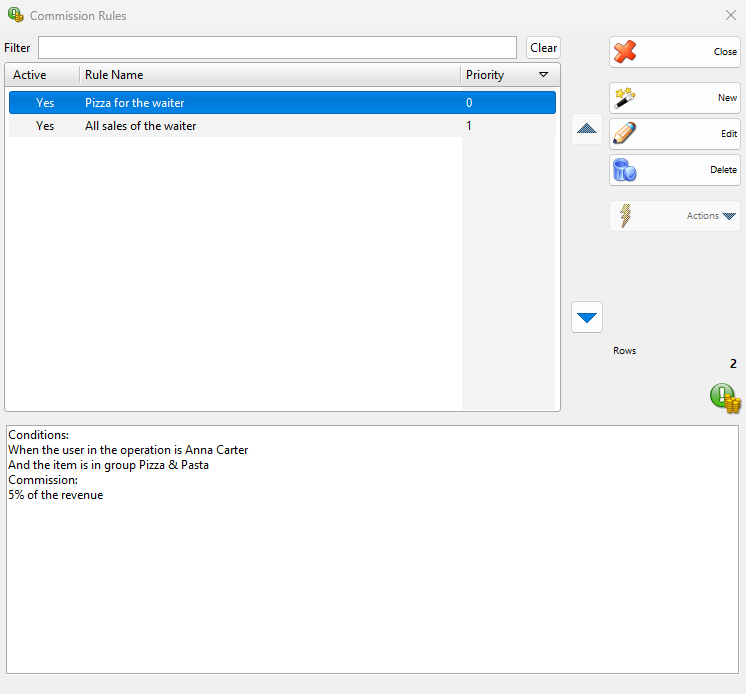
| Control | What it does |
|---|---|
| Filter | Shows the rules whose name contains the text. |
| New, Edit, Delete | Add, change and delete rules. Several rules can be deleted together. |
| Up and down arrows | Move the selected rule up or down. This changes Priority, the order in which the rules are checked. |
| Active | Yes if the rule is used. Change it in the rule. |
| The panel below the list | The conditions and the commission of the selected rule as text, for example “5% of the revenue”. A red rule or line refers to something missing, for example a deleted user. |
Create or change a rule
- Click New. The New Commission Rule window opens. Edit opens the selected rule in Edit Commission Rule.
- Enter Name. Active is selected.
- Under Conditions click Add a condition, select the condition in Choose Condition Type and enter its values. Repeat for each condition.
- Under Action enter Commission Rate (%) and select Calculated from:.
- Click Save. A new rule is added at the bottom of the list.
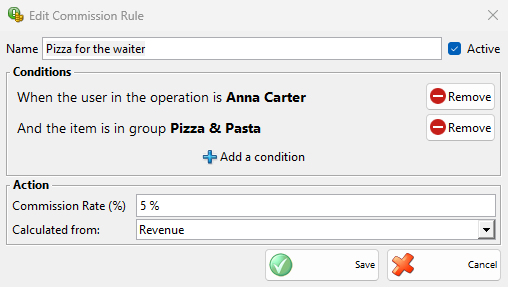
| Field | What it does |
|---|---|
| Name | The name in the list. Required. |
| Active | The rule is used. Clear it to stop the rule and keep it. |
| Conditions | What the sale and the row must match. All conditions must be fulfilled, and a condition with several values needs one of them. Click the text of a condition to change its values. Remove deletes it. |
| Commission Rate (%) | The percent of the commission, more than 0 and up to 100. |
| Calculated from: | Revenue or Profit. See How the commission is calculated. |
The conditions are Partner, Partner group, Partner tag, Location, Location group, Location tag, User, User group, User tag, Item, Item group, Item tag and Date. The item conditions are checked for each row, the others for the whole sale. They work as in Price rules, including do not run the action when this condition is fulfilled, which leaves out what matches, for example a group of items.
Delete a rule
Select one or more rules, click Delete and answer “Do you want to delete the commission rule “…”?” with OK. The commissions already stored in the sales stay. They change only when a sale is edited or recalculated.
Recalculate Commissions
A change of the rules does not change the saved sales. To apply the current rules to them:
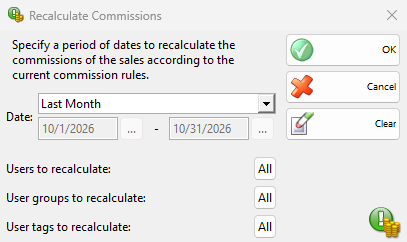
- Go to Edit → Administration → Recalculate Commissions….
- Select the period of the sales. Last Month is selected the first time, then the window remembers the last period.
- To limit the sales, click the button next to Users to recalculate:, User groups to recalculate: or User tags to recalculate:. All means no limit. Clear removes the period and the limits.
- Click OK. The progress shows the number of sales. Stop ends the work after the current sale.
Each sale in the period gets the commissions of the current rules, and a commission that no rule gives any more is removed. A sale that you may not edit, for example because it is older than your date limit for editing, keeps its commissions. The Application Log records the start and the end with the period.
Permissions
The Commission Rules… and Recalculate Commissions… permissions under Administration in Permissions control the menu items. They are not allowed by default for operators.
Troubleshooting
| Problem | Solution |
|---|---|
| A row has no commission | Check Active and the conditions of the rule, and that the sale is saved. The rate is calculated from the row, so a row with a zero price or quantity gives no commission. |
| The wrong rule gave the commission | Only the first matching rule counts for a row. Move the more specific rule up with the arrows. |
| Old sales show the commissions of the old rules | Run Recalculate Commissions for their period. |
| “The name of a commission rule must not be empty.” | Enter Name. |
| “A commission rule must contain at least one condition.” | Click Add a condition. |
| “Invalid commission rate. Must be between 0 and 100.” | Enter a percent greater than 0 and not more than 100. |
| “Please select a date range.” | Select both dates of the period in Recalculate Commissions. |
FAQ
Can a row give commissions to two rules?
No. A row gets one commission, from the first rule in the list whose conditions are fulfilled.
Can a commission be negative?
Yes, from Profit, when the sale price of a row is lower than its purchase price.