
Use Edit → Documents → Management → Proforma invoice… to change, annul, export or transform proforma invoices that are already saved. Saving changes requires a license for the Advanced Operations module, the same as for a new Proforma Invoice.
Select the document
The Proforma Invoice – Select Document window lists the saved proforma invoices with their Number, Date, Partner, Location and, when Show totals in the choose operations dialogs (slower loading) is enabled in Tools → Settings…, Total Amount. Users without the Manage operators and view their operations permission see only their own documents.
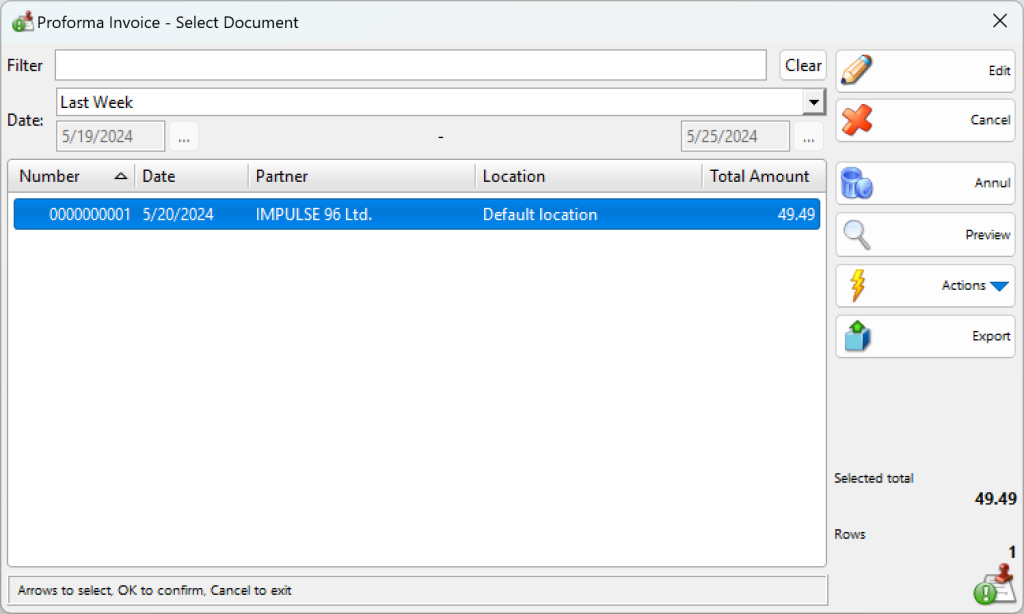
| Control | What it does |
|---|---|
| Filter | Shows only the documents whose number, partner or location contains the typed text. |
| Date: | The period of the listed documents, for example Today, Past Week or This Month. Choose Custom Dates to enter a start and end date. The window remembers the last period. |
| Clear | Clears the filter text and sets the period back to Today. |
| Edit | Opens the selected document for editing. If you select several documents, each opens in its own tab. |
| Cancel | Closes the window. |
| Annul | Annuls the selected documents after a confirmation (“Are you sure you want to annul this proforma invoice?”). Stock is not affected because a proforma invoice never changes it. |
| Preview | Shows or hides a preview of the selected document. |
| Actions | Actions for the selected documents, for example Print, Transform Selected Documents, Related Documents and Show Changes History. |
| Export | Exports the listed or the selected documents. It is shown only to users with the Export permission of this menu item; operators do not have it by default. |
Rows shows the number of listed documents and Selected total the total of the selected ones.
Edit the document
The document opens in the Edit proforma invoice No. window. It works like the Proforma Invoice window.
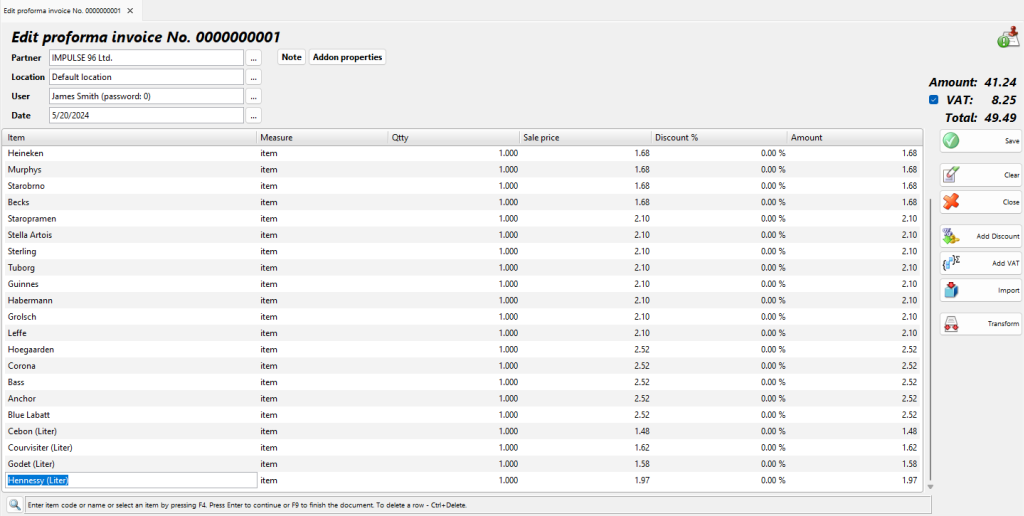
- Change Partner, Location, User or Date by typing a new value or by choosing from the list with F4. Changing the user or the date requires the Edit User or Edit Date permission.
- To change a quantity or a price, type the new value in the Qtty or Sale price column.
- To add an item, go to the empty row at the end of the table (press Enter on the last row) and enter the item.
- To remove a row, press Ctrl+Delete or use Clear → Delete current row. You can also set its quantity to 0: the row is shown struck through and is removed when you save.
- To cancel the whole proforma invoice, use Annul in the Proforma Invoice – Select Document window.
Save the changes
- Press F9 or click Save. The program asks “Do you want to save the changes?”. Click OK.
- If printing is available, the program asks “Do you want to print a proforma invoice?”, depending on Print documents: in Tools → Settings… → Printing.
- The edit window closes.
If you close the window with unsaved changes, the program asks “Exit without saving the changes?”.
Troubleshooting
| Problem | Solution |
|---|---|
| A document is missing from the list. | Check the Date: period and the Filter. Without the Manage operators and view their operations permission you see only your own documents. |
| There is no Annul or Export button. | Your user lacks the permission for editing proforma invoices or for exporting them. Ask an administrator to check Edit → Administration → Permissions…. |
| “This is a free version of the Proforma Invoice operation! To save your operation please purchase a license.” | Activate a license. The free version cannot save changes. |