
Use Edit → Reprint Documents → Management → Proforma Invoice… to print a saved proforma invoice again. This menu item has no default keyboard shortcut.
Select and print documents
- Open Edit → Reprint Documents → Management → Proforma Invoice…. The Proforma Invoice – Select Document window opens.
- Find the document with Date: and Filter.
- Select one or more documents and click Print (or double-click a document).
- For one document the print preview opens, where you can print or export it. For several documents the Reprint Proforma Invoices window opens: choose Print preview, Print all or Export all, optionally a currency and a language for the documents, and click OK.
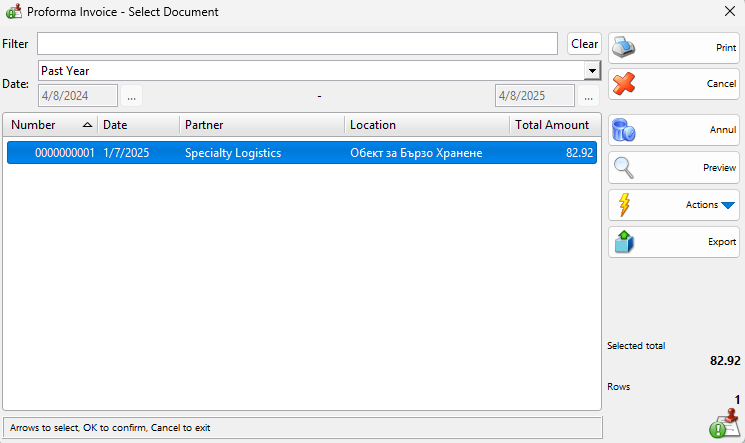
Window controls
| Control | What it does |
|---|---|
| Filter | Shows only the documents whose number, partner or location contains the typed text. |
| Date: | The period of the listed documents, for example Today, Past Week or This Month. Choose Custom Dates to enter a start and end date. The window remembers the last period. |
| Clear | Clears the filter text and sets the period back to Today. |
| Prints the selected documents as described above. | |
| Cancel | Closes the window. |
| Annul | Annuls the selected documents after a confirmation. Shown only to users who may edit proforma invoices. Stock is not affected. |
| Preview | Shows or hides a preview of the selected document. |
| Actions | Actions for the selected documents, for example Transform Selected Documents or Related Documents. |
| Export | Exports the listed or the selected documents. Shown only to users with the Export permission for editing proforma invoices. |
Users without the Manage operators and view their operations permission see only their own documents. To change a document before printing, use Edit proforma invoice.