
A proforma invoice is a sale-type document that you issue to a customer before the actual sale. It fixes the items, quantities, prices, discounts and VAT that you offer. A proforma invoice does not change the quantities in stock and does not create payments, income or expenses. You can print it, edit it later and transform it into a sale or another operation.
License required. The Proforma Invoice operation is part of the paid Advanced Operations module (a Basic or better license). Without a license the window opens with a warning, but saving is blocked with the message “This is a free version of the Proforma Invoice operation! To save your operation please purchase a license.”
Open the Proforma Invoice window
Go to Operations → Management → Proforma Invoice or press Shift+F8. If your user has no permission for this menu item, the program shows “Opening the Proforma Invoice screen is not allowed!”.

Fill in the header
In each header field type a name or code and press Enter, or open the list with F4, a double-click in the field or the … button.
| Field | What to enter |
|---|---|
| Partner | The customer to whom the proforma invoice is issued. The sale prices follow the partner’s price group. If the partner is VAT exempt, the document becomes VAT exempt too. |
| Location | The location that issues the document. Its price group can also affect the prices. Stock in the location does not change. |
| User | The user responsible for the document. The logged-in user is filled in. Changing it requires the Edit User permission (Operations), which operators do not have by default. |
| Date | The document date. Today is filled in. Press F4 or double-click to pick a date from the calendar. Changing it requires the Edit Date permission (Operations), which operators do not have by default. |
Add items
- In the Item column type the item name, code or barcode and press Enter. To choose from the list, press F4 or double-click the cell. In the list you can select several items with Ctrl+click, or with Shift and the arrow keys.
- In the Qtty column enter the quantity and press Enter.
- In the Sale price column check or change the price and press Enter. The Amount is calculated automatically and a new row opens.
- Repeat for each item. To delete the current row press Ctrl+Delete.
The quantity is not checked against the stock, so you can offer items that are not available. Proforma invoices do not use lots: there are no lot, serial number, expiration date, production date or lot location columns.
| Column | Meaning |
|---|---|
| Item, Measure | The item and its measurement unit. |
| Qtty | The offered quantity. |
| Sale price | The price for the customer, filled in from the item’s price for the partner’s price group. |
| Discount %, Discount value | A discount for the row. Shown only when Allow percent discounts or Allow value discounts is enabled in Tools → Settings… → Operations. |
| VAT % | The VAT rate of the row. Shown only when Enable VAT rate is turned on in the settings. |
| Amount | Quantity × price after the discount. |
The totals Amount:, VAT: and Total: are shown at the top right. Clearing the check box next to VAT: makes the whole document VAT exempt after a confirmation.
Buttons
| Button | What it does |
|---|---|
| Save (F9) | Saves the proforma invoice (see Save and print). |
| Clear | Its menu has Delete current row and Delete all rows. |
| Close | Closes the window. If there are unsaved rows, the program asks “Exit without saving the proforma invoice?”. |
| Add Discount (Ctrl+Shift+D) | Applies a percent or value discount to the whole document and spreads it over the rows. Shown only when percent or value discounts are allowed in the settings. |
| Add VAT / Subtract VAT | Recalculates all entered prices. When the program works with prices with VAT included, the button is Add VAT: use it if you entered prices without VAT. When it works with prices without VAT, the button is Subtract VAT: use it if you entered prices with VAT. After a click the button switches to the opposite action, so you can undo it. |
| Import | Loads the item rows from a file. Shown only when data importers are available. Fill in the header first. |
| Actions | Additional actions for the document, such as Save and Transform (see Transform the proforma invoice). |
| Note, Addon properties | Add a note or additional document properties to the proforma invoice. |
Import item rows
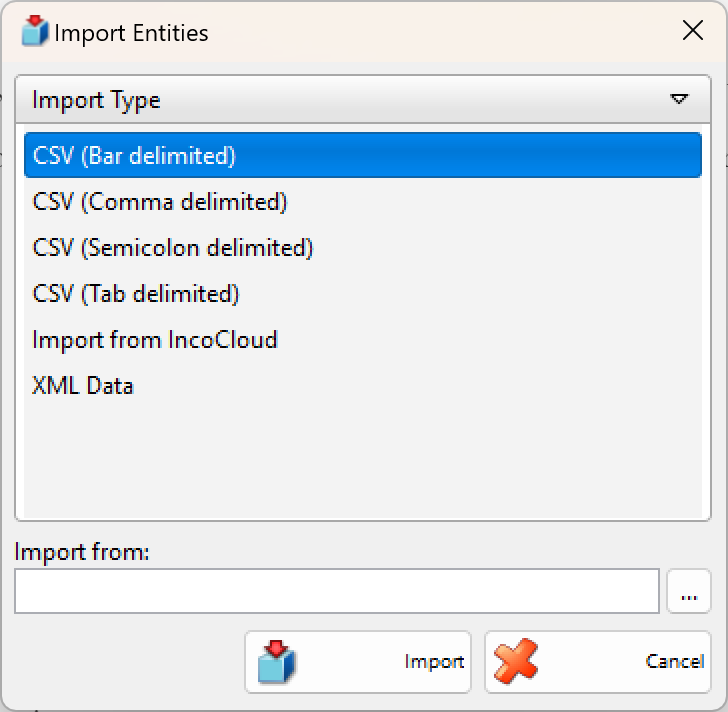
Click Import, choose the import type (for example a CSV format, XML Data or Import from IncoCloud), select the file in Import from: and click Import. The file must contain the items and their parameters for the document.
Save and print
- Press F9 or click Save. The program asks “Do you want to save the operation?”.
- Click OK to save. Click Save draft to keep the document as a draft instead (see below).
- If printing is available, the program asks “Do you want to print a proforma invoice?”. Click Yes to open the print preview. Select Don’t ask me again to remember the answer. The question depends on Print documents: in Tools → Settings… → Printing (Ask, Always, Never or Ask per document type).
After saving, the window is cleared for the next proforma invoice.
Drafts
A draft keeps an unfinished proforma invoice so you can finish it later; it gets a document number only when you save it. The Save draft button appears when you save a new document and when you close a window with unsaved rows. Drafts are listed in Reports → Drafts…; select a draft there and use Actions → Edit to continue. The window then shows “Edit proforma invoice draft”. Saving it with OK turns the draft into a normal proforma invoice.
Transform the proforma invoice
A transformation creates a new document, for example a Sale, from the rows of the proforma invoice. The proforma invoice itself does not change unless you choose to annul it.
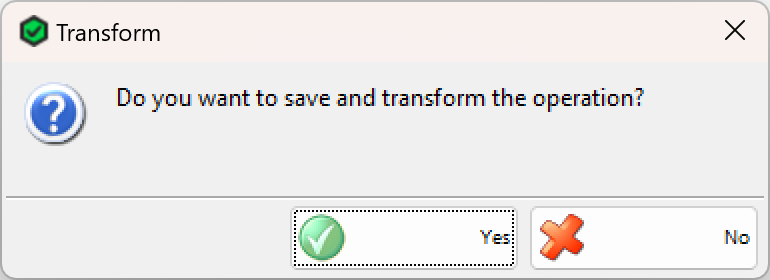
- New proforma invoice: click Actions → Save and Transform and confirm “Do you want to save and transform the operation?”. The proforma invoice is saved first.
- Saved proforma invoices: use Operations → Transform Document… (Ctrl+T), or select one or more documents in the Proforma Invoice – Select Document window and click Actions → Transform Selected Documents. Several selected proforma invoices are combined into one new document.
In Transformation – Select Destination Document choose the operation type and click OK. For a saved document you can also select Annul the source document, Use the date from the source document and Use prices from the source document. The new operation opens with the items filled in; check it and save it there. For details see Transform Document.
Troubleshooting
| Problem | Solution |
|---|---|
| “This is a free version of the Proforma Invoice operation! To save your operation please purchase a license.” | Activate a license for IncoPOS. The free version cannot save proforma invoices. |
| “Opening the Proforma Invoice screen is not allowed!” | Ask an administrator to allow Proforma Invoice for your user in Edit → Administration → Permissions…. |
| There is no Add Discount button or discount column. | Enable Allow percent discounts or Allow value discounts in Tools → Settings… → Operations. |
| There is no Import button. | No data importers are available on this computer. |
| “There are no valid rows in the proforma invoice document!” | Add at least one item with a quantity greater than zero. |
FAQ
Does a proforma invoice change the stock?
No. Quantities in stock do not change and no payment is recorded.
Can I issue a proforma invoice for items that are out of stock?
Yes. The availability is not checked.
How do I turn a proforma invoice into a sale?
Transform it into a Sale with Actions → Save and Transform or Operations → Transform Document….