
Connect your WooCommerce store to IncoPOS with the IncoCloud Web Store Connector. Your items, prices and stock are published to the store automatically, and the orders from the store come back to IncoPOS as sales.
Quick Start
What You Need
- An IncoCloud group with your IncoPOS database synchronized to it
- A cloud credit for the web store – the service uses one cloud credit for each connected web store
- A WooCommerce store (WordPress) with administrator access
Step 1: Create API Keys in WooCommerce
- Log into the WordPress administration of your store
- Go to WooCommerce → Settings → Advanced → REST API
- Click Add key
- Enter a description (e.g. “IncoPOS”), choose an administrator user and set Permissions to Read/Write
- Click Generate API key and copy the Consumer key and the Consumer secret – WooCommerce shows the secret only once!
⚠️ Important: The consumer key and secret give full access to the products and orders of your store. Keep them private and enter them only in IncoCloud.
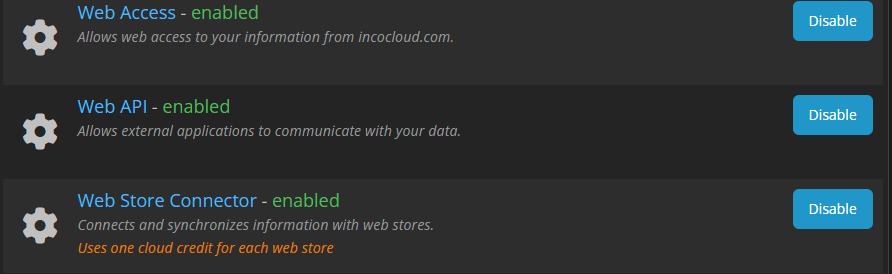
Step 2: Enable the Web Store Connector
- Log into your IncoCloud account at incocloud.com/account
- Open Database groups and choose your group
- Click Services
- Find Web Store Connector and click Enable
Step 3: Add Your Web Store
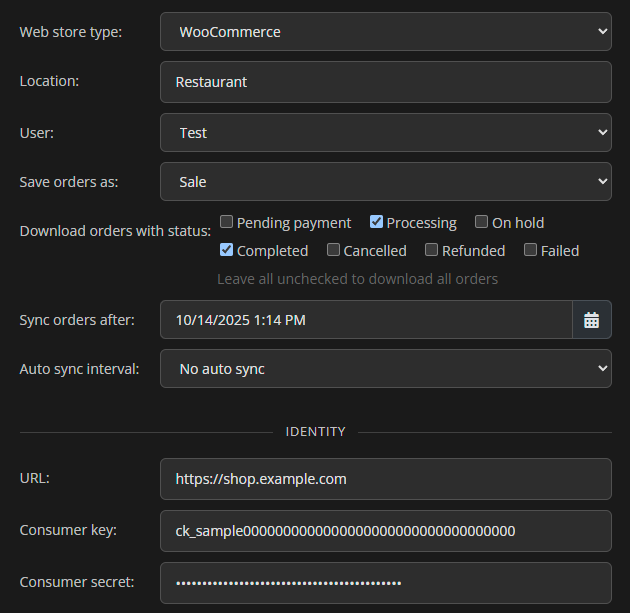
- Click Web Store Connector and then Add new web store
- Set Web store type to WooCommerce
- Choose the Location whose items and stock are published to the store. The orders are also saved in this location.
- Choose the User that the orders are saved with
- In URL enter the full address of your store, e.g.
https://www.mystore.com - Paste the Consumer key and the Consumer secret from Step 1
- Set up how items and partners are matched (see Settings below)
- Click Save
💡 Tip: The first synchronization starts right after you save. Before you save, make sure that the items you want to publish have a value in the field you match by (e.g. a code that is used as SKU in the store). Otherwise the item cannot be recognized on the next synchronization and is created again.
Step 4: Check the Result
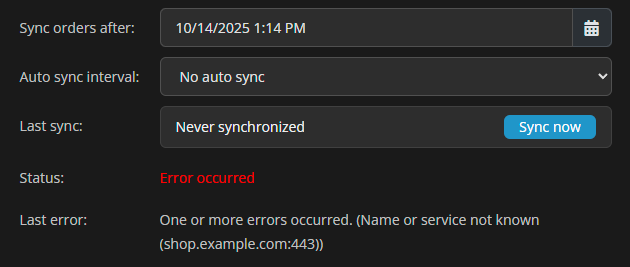
Open the web store again in IncoCloud. Last sync shows when the last synchronization finished and Status shows what the connector is doing right now. If something went wrong, Last error shows the reason. Click Sync now to start a synchronization at any time.
How Synchronization Works
From IncoPOS to the Web Store
- Items – all items in the selected location are published. If you set Synchronize all items with tag, only the items with that tag are published.
- Name and description – taken from the item in IncoPOS
- Price – taken from the price group you choose in Price group for the web store
- Stock – the available quantity of the item in the selected location. Items that are not inventory items (e.g. services) are published without stock management.
- New items – items that are not found in the store are created there as new products
After the first synchronization, only the items that changed in IncoPOS (or whose quantity changed in the selected location) are sent to the store.
From the Web Store to IncoPOS
- Orders – new orders from the store are saved in the selected location as a Sale or as a Sales Order, depending on Save orders as
- Customers – the customer of each order is matched to a partner in IncoPOS. If no partner is found, a new one is created from the billing details of the order.
- Order lines – each line is matched to an item in IncoPOS with its quantity and price. Lines that cannot be matched create a new item.
- Each order is imported only once. The note of the operation contains the number of the order in the store.
💡 Good to know: Orders are saved without payment. Changes made to an order in the store after it was imported are not synchronized again.
Settings
General
| Setting | Description |
|---|---|
| Web store type | The platform of your online store |
| Location | The location whose items and stock are published and where the orders are saved |
| User | The user that the imported orders are saved with |
| Save orders as | Sale – the order is recorded as a sale and reduces the stock. Sales Order – the order is recorded as a sales order and can be completed later. |
| Download orders with status | Only orders with the checked statuses are imported (e.g. only Processing and Completed). Leave all unchecked to download all orders. |
| Sync orders after | Orders created before this date are not imported |
| Auto sync interval | How often the connector synchronizes automatically: every 10, 20 or 30 minutes, or every 1, 2 or 3 hours. Choose No auto sync to synchronize only with Sync now. |
Items
| Setting | Description |
|---|---|
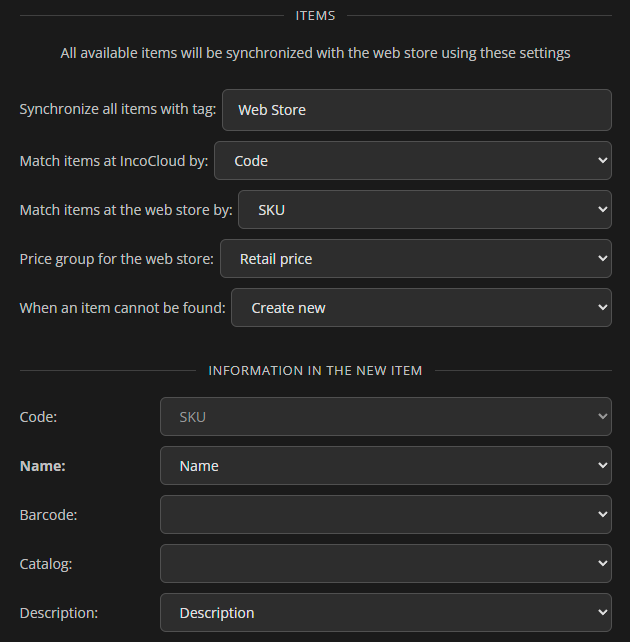
| Synchronize all items with tag | Publish only the items with this tag. Leave it empty to publish all items in the location. |
| Match items at IncoCloud by | The item field in IncoPOS used to find the same product in the store: Code, Name, Barcode or Catalog |
| Match items at the web store by | The product field in the store compared with the field above: SKU or Name. The most reliable choice is Code ↔ SKU. |
| Price group for the web store | The price group whose prices are published to the store |
| When an item cannot be found | Choose Create new to create the item from an order line that does not match any item |
| Information in the new item | Which product field from the store fills the Code, Name, Barcode, Catalog and Description of an item created from an order |
Partners
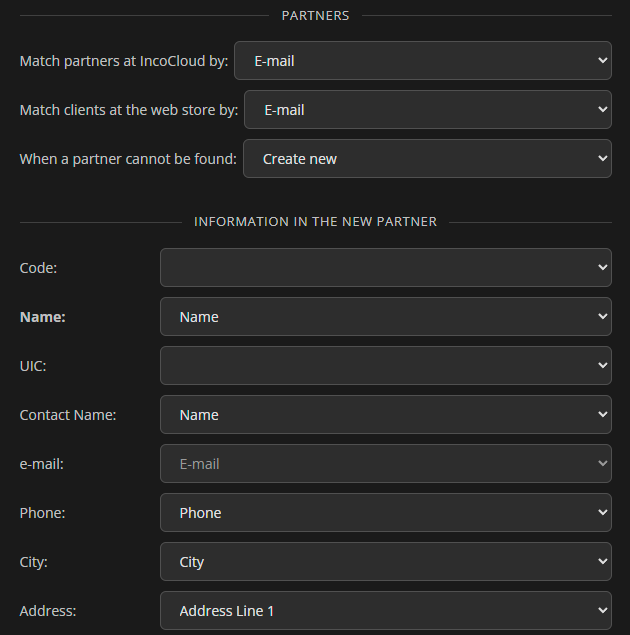
| Setting | Description |
|---|---|
| Match partners at IncoCloud by | The partner field in IncoPOS used to find the customer: Name, Contact name, E-mail or Phone |
| Match clients at the web store by | The customer field from the order compared with the field above, e.g. Name, E-mail or Phone. E-mail ↔ E-mail is the most reliable choice. |
| When a partner cannot be found | Choose Create new to create a partner from the billing details of the order |
| Information in the new partner | Which customer detail from the order fills each field of the new partner (name, e-mail, phone, city, address, etc.) |
Troubleshooting
| Problem | Solution |
|---|---|
| Last error shows “401 (Unauthorized)” | The consumer key or secret is wrong or was revoked in WooCommerce. Create a new key in WooCommerce (Step 1) and enter it again in IncoCloud. |
| Last error shows “404 (Not Found)” | Check the URL of the store. In WordPress go to Settings → Permalinks and make sure the setting is not Plain – the WooCommerce REST API needs pretty permalinks. |
| The same product is created again and again | The field you match by is empty or different on the two sides. Fill the matching field (e.g. the item code in IncoPOS and the SKU in the store) with the same value. |
| Orders do not appear in IncoPOS | Check Download orders with status and Sync orders after, then click Sync now |
| Prices or stock in the store are not updated | Check that the item is in the selected location, has the selected tag (if one is set), and that Price group for the web store is the one you expect |
Best Practices
- Use Code ↔ SKU to match items and E-mail ↔ E-mail to match partners
- Use a tag to publish only the items you want to sell online
- Use a separate location for the online store if you want to keep its stock apart from your physical stores
- Keep Sync orders after close to the date you start selling online, so that old orders are not imported
- Check Last sync and Last error from time to time, especially after changing the settings of your store
Support & Resources
- IncoCloud: incocloud.com/account
- Support: support@incopos.com
- General Support: office@incopos.com
- Phone: +359 878 223 860
Frequently Asked Questions
Can I connect other online stores?
This page describes WooCommerce stores (WordPress). Contact us if you use another platform.
Can I connect more than one web store?
Yes. Add each store separately with Add new web store. Each connected store uses one cloud credit.
Do I need to keep my computer on?
No. The synchronization runs in IncoCloud, so it works even when IncoPOS is closed. The operations reach your IncoPOS workstations the next time they synchronize with IncoCloud.
Does a sale in the store reduce my stock in IncoPOS?
Yes, when the orders are saved as Sale. Orders saved as Sales Order change the stock only after you turn them into a sale.
If I change the stock directly in the store, will IncoPOS be updated?
No. IncoPOS is the source of items, prices and stock. Changes made in the store are overwritten on the next synchronization of the item.